Conversations
Conversations are the exchange of messages between the bot or an agent to the customers. It is here you can monitor and interact with a customer.
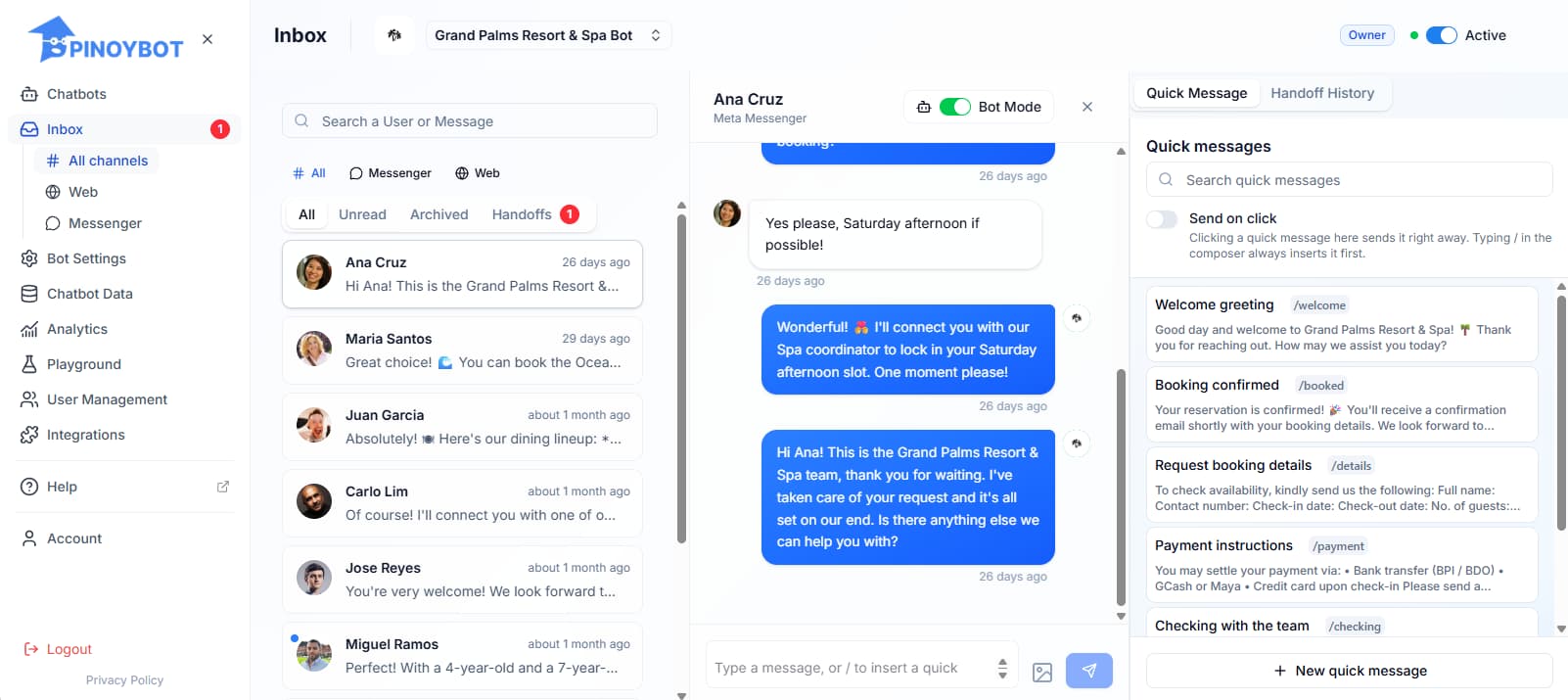
The Inbox is where you can monitor conversations between your chatbot and your customers.
You can review messages, respond to customers, and identify conversations that need human intervention — all from one place.
Before you begin
Everyone can view but Viewer and Editor roles are not able to manage conversations.
Navigation
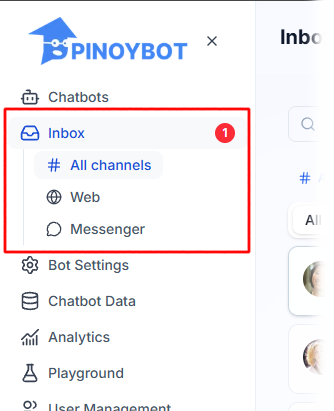
You can get to the Conversations by clicking Inbox at the left side panel.
The conversations list
How to Search and Filter Messages to Find Conversations
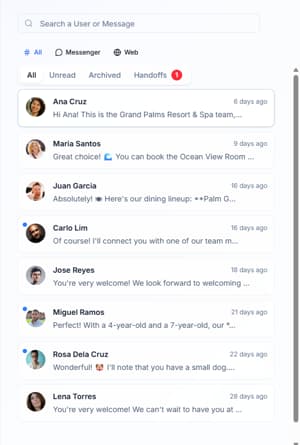
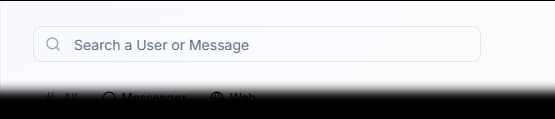
By searching through the search box filtered against message content or the customer name.
By the source, also called the channel of customer interaction.
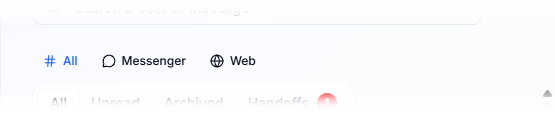
- All — View conversations from all available channels.
- Web Chat — View conversations from your website's chat widget.
- Messenger — View conversations from Facebook Messenger. We are working to add more social media platform support to Pinoybot! When we do more options may become available in the Inbox.
By the status of the customer conversation (i.e. Unread, Archived, Handoffs or All).
 Conversations can have different statuses depending on what has happened to
them.
Unread
An Unread conversation contains messages that have not been read yet.
Unread conversations help you quickly identify messages that may still need your attention.
Archived
An Archived conversation has been marked as completed by a PinoyBot user.
Archiving a conversation removes it from the active conversations while keeping it available for later reference.
Handling messages
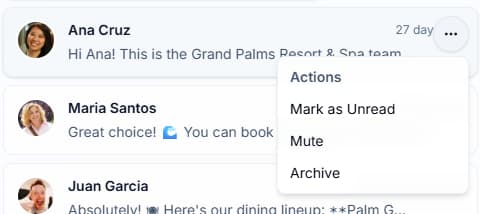
You can set the status of a message by clicking the dot menu in the inbox.
The conversation contents
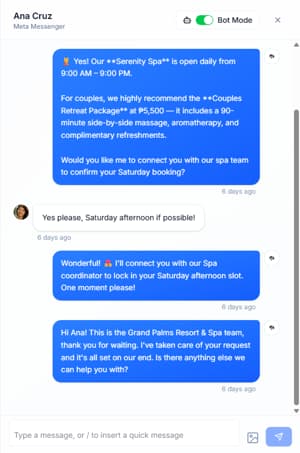
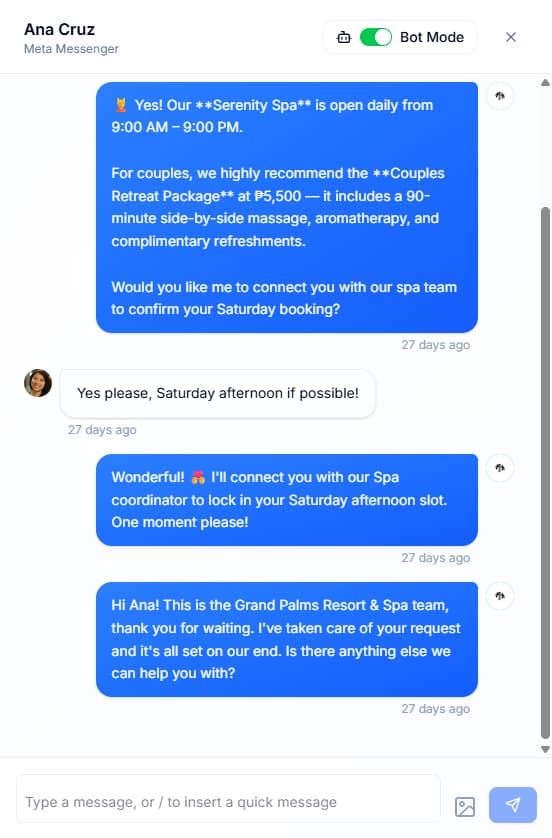
Selecting a conversation from the list will show the details here. You can closely monitor the bot's replies to your customers, as well as your own messages as a human agent.
Bot mode
It is a toggle that you can switch off so the bot will not reply into this conversation. Which also means that a person the agent, should take over responding to the customer. See more details in Agent Takeover & Standby.
Compose box
You can write your message, as well as attach files and images to send to your customer.

Attaching files and images to your message.
- You can attach images by clicking on
 and it will open a file-picker.
- The types of files allowed as attachments are limited to documents (e.g. PDF, MS Word, MS Excel, Zip file) and images (e.g. JPG, PNG, Bitmap).
- You can attach 10 images + 10 documents up to 50MB each.
- Alternatively, you can attach files by dragging and dropping them into conversation contents area with the same above rules.
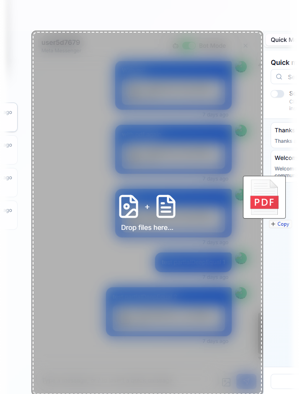
- The attachments will send together with your message when you click send
 or hit "Enter".
Shortcut to using Quick messages using slash (/) commands.
Shortcuts let you access Quick Messages without having to open the panel and find a saved response manually. This gives you a faster way to insert frequently used responses while keeping your focus on the conversation.
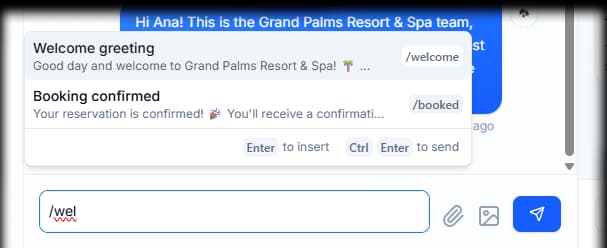
- By typing slash "/" on the Compose box, it will call a pop-over menu of your saved quick messages.
- You can filter what shows in the pop-over by typing the value in "shortcut" that is saved with the quick message or continuing to type the content of the quick message.
- You can navigate through the list using up and down arrow keys, dismiss the pop-over with "Escape" key or using "Backspace" to delete "/".
- Hitting "Enter" will insert the content of the quick message, but you can also hit "Ctrl + Enter" to insert it and then send the message in compose box.
Responding to customers
You can respond to customers directly from the conversation view.
When a conversation requires human assistance, type your response in the message box and send it to the customer.
This allows an agent to take over the conversation without requiring the customer to start over or move to another channel or site.
If the user is inquiring through a social media platform, you can also send images and files as messages to the inquiring user. There is currently no way to send or receive files or images through webchat.
Handling non-handoff messages
If you wish to handle a conversation with a user that is not handed off to you, remember to turn off Bot mode found at the top of the conversation panel.
Reviewing conversations
Conversations are also useful for understanding how customers interact with your chatbot.
When reviewing conversations, look for questions or situations where your bot could be improved.
For example, you might discover that:
- Your chatbot does not know the answer to a common question.
- Customers are asking questions in a way you did not anticipate.
- A response contains incorrect or incomplete information.
- A conversation is frequently handed off to an agent.
- Customers are asking about information that is missing from your training data.
Improving your chatbot from conversations
Real customer conversations can be a useful source of new training data.
If you discover a question that your chatbot struggles with, you can use it to create a new training pair or improve an existing one.
Training pair changes apply to customer conversations as soon as you save them. Use the Playground right after making your changes to test how your chatbot responds.
Improving your bot
The dashboard and analytics page have statistics and information that can help improve your chatbot. E.g. the frequently asked questions, questions without answers, and unsatisfactory remarks or comments.
The Quick messages and Handoff History
This section helps agents with conversations. Please open a conversation first to use this feature.
Quick Messages
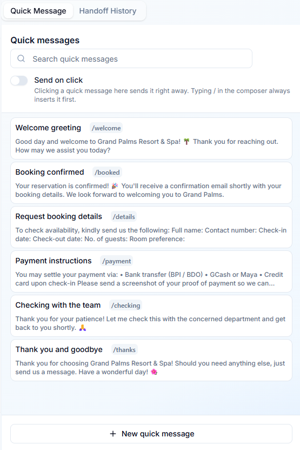
These are pre-written messages prepared in advance to help you reply to customers quickly, such as welcome or thank you messages. See more details in Quick Messages' page.
Handed off
A Handed off conversation is one that requires intervention from a human agent.

Your chatbot can hand a conversation off when it determines that the customer's request requires human assistance.
When a conversation is handed off, an agent can step in and continue the conversation with the customer.
Handoff History
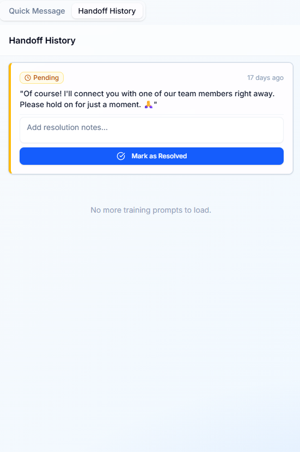
This tab contains a list of messages in a conversation that triggered the bot handing it over to a human agent, ordered from newest to oldest and require your attention. Because handoff messages usually occur when the bot cannot provide an answer or when information should come from a human agent, clicking a message scrolls the conversation directly to that moment. This helps you navigate to important moments where you can provide better service to your customers.
Marking a Handoff as Resolve
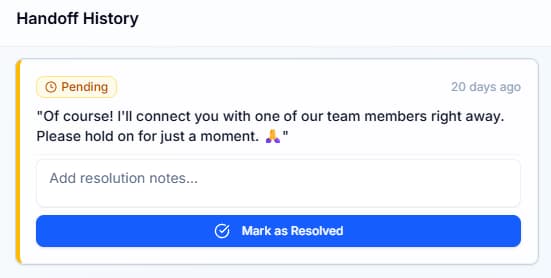
- When you click on a handoff history message, it will expand to show an input field where you can add resolution notes and a button to mark it as resolved.
- Marking a message as resolved helps with data segregation and ensures an accurate badge count. Adding a resolution note helps you remember the actions taken to resolve the customer's needs.
The short version
You may also want to check out these guides
| Train your bot | Train your bot with files |
| Channels | Put the chat widget on your site |
| Playground | Experiment with how your chatbot responds to new queries |
Did this fix it?
If you are unable to solve your issue, tell us what happened. You do not need to be signed in.