Facebook Messenger
Deploying your bot on your facebook page
Once your Page is connected, your bot answers Messenger messages the same way it answers on your website. Most businesses set this up first, because it is where their customers already are.
Before you start
- You need the Admin role or higher in PinoyBot.
- You need to be an admin of the Facebook Page. This is Facebook's rule, not ours, and it is the single most common thing that blocks people here.
- Your bot should already know something. If you have not added a knowledge source yet, do that first or it will reply with nothing useful.
Connect the Page
Open Integrations in the sidebar, then select the Meta Messenger tab.
Press Connect a Facebook Page. You will be sent to Facebook to sign in and approve access, then brought straight back here.
Pick your Page from the list and press Connect.
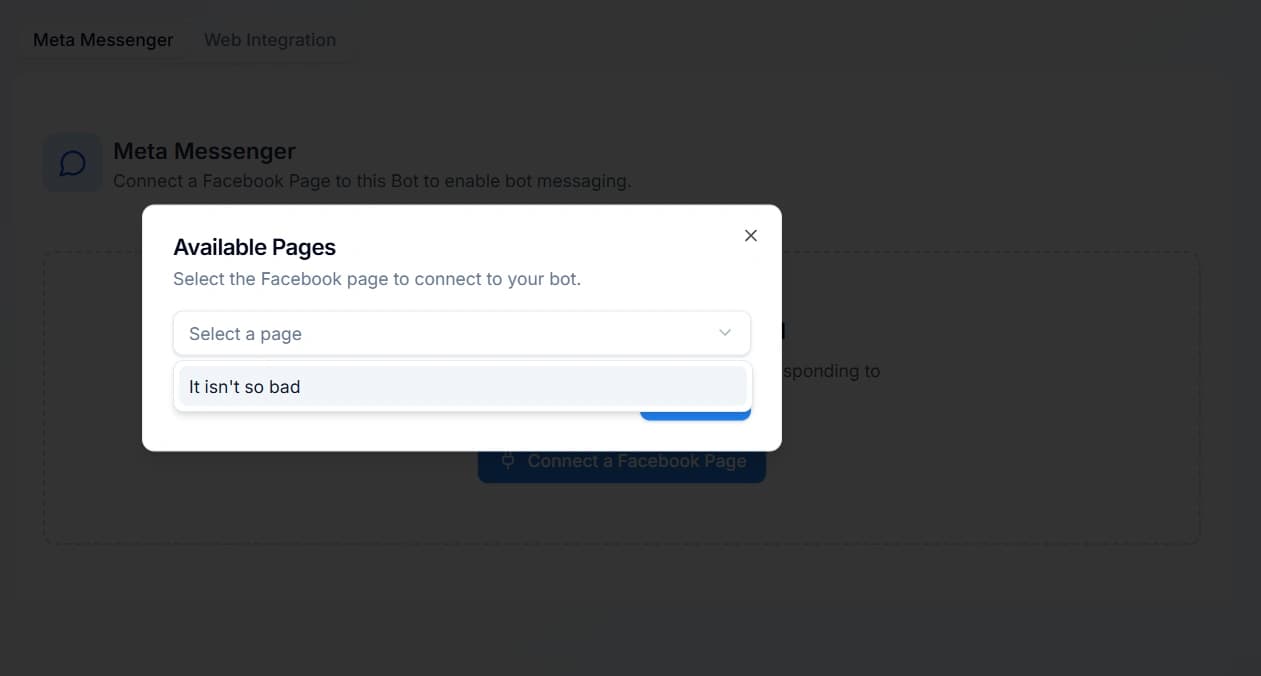
The picker only lists Pages you administer.
Your Page is not in the list?
Almost always this means the Facebook account you signed in with is not an admin of that Page. Ask whoever set the Page up to make you an admin in Facebook's Page settings, then press Connect a Facebook Page again. Being able to post on the Page is not the same as being an admin.
Check that it worked
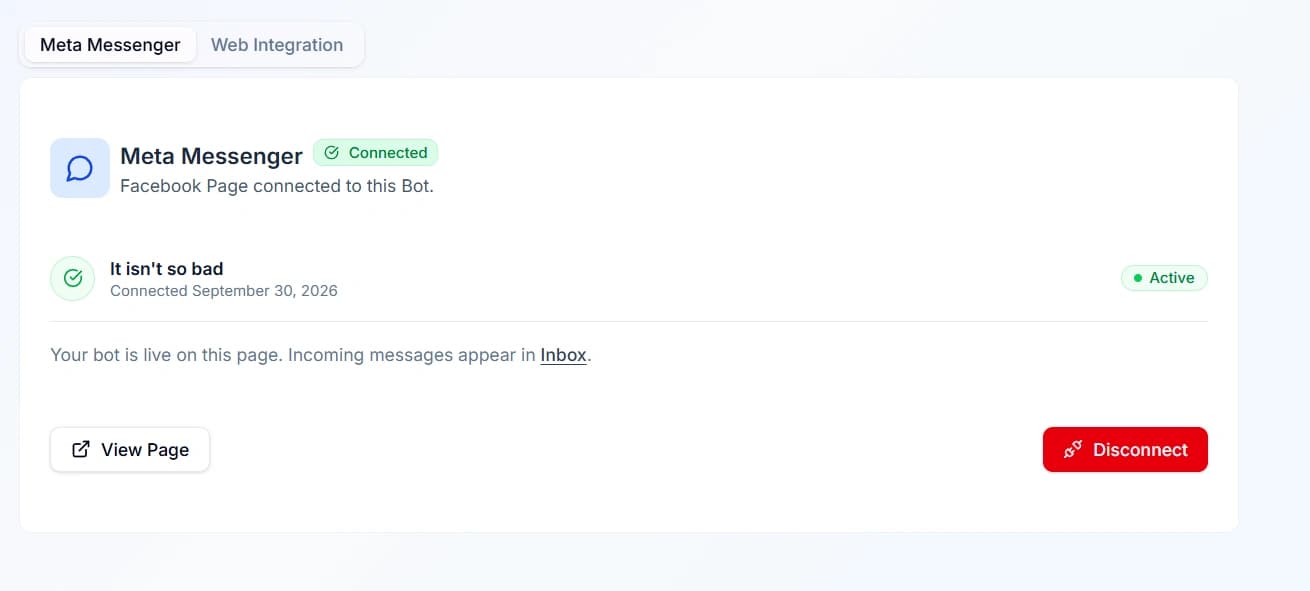
You will see a green Connected badge with your Page name and the date. Then message your own Page from a different Facebook account, or ask a friend to. Messages from your own admin account do not always trigger a reply.
The conversation will also appear in your Inbox, where you can take over from the bot at any time.
Two things people expect to work differently
One Page per bot. To answer for a second Page, make a second bot. Your bot's other settings, such as business hours and the off-hours message, are set per bot in Settings.
Disconnecting
Press Disconnect on the same tab and confirm. Your bot stops answering on Messenger straight away. Nothing is deleted, and your past conversations stay in the Inbox, so you can reconnect later without losing anything.
Did this fix it?
If your bot still gives the wrong answer, tell us what happened. You do not need to be signed in.