Profile & Password
Manage your account details, profile information, and password.
Opening Your Account Settings
- Open your PinoyBot dashboard.
- Select Account from the sidebar.
The page is divided into three sections: your account header, profile information, and password settings.
Account Header
The header displays your account's basic identity and activity information.
You can update your username and account icon here. It also displays the number of chatbots you own and the number of chatbots where you have an assigned role.

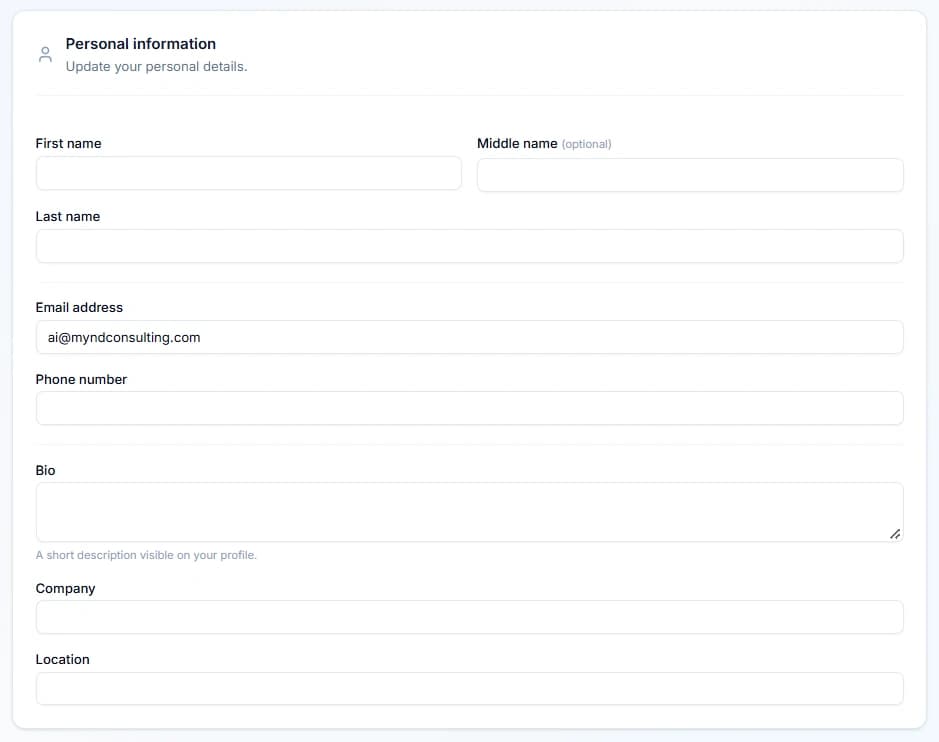
Account Profile
Your account profile contains your personal and contact information, including your name and address.
Update these details whenever your information changes, then save your changes when the save button appears.
Changing Your Password
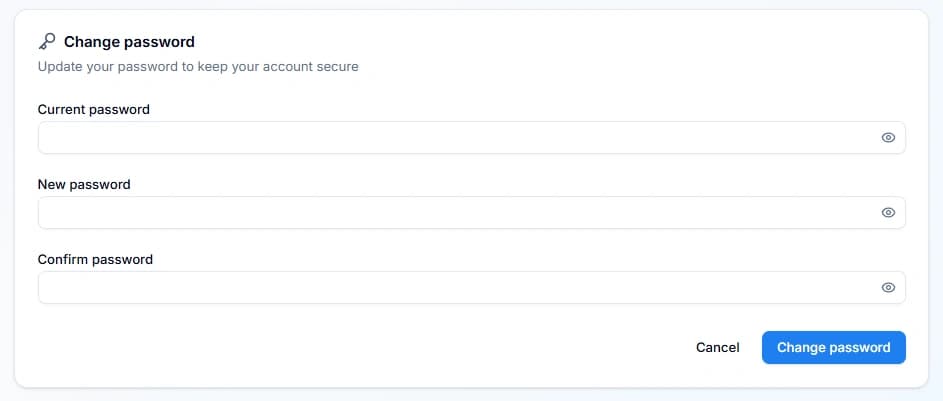
You can change your password from the password section of the Account page.
Enter your current password.
Provide the password you currently use to sign in to PinoyBot.
Enter your new password.
Choose a new password that you have not used elsewhere.
Confirm your new password.
Enter the new password again to ensure both entries match.
Submit your changes.
Select the password change button to apply the update.
 After your password is changed successfully, other active sessions will be logged out. Your current session will remain active.
You may also want to check out these guides
| The Dashboard | Learn how to navigate the PinoyBot dashboard |
| Train Your Bot | Manage the files used to train your chatbot |
| Channels | Connect your chatbot to your website |
Did this fix it?
If you are unable to solve your issue, tell us what happened. You do not need to be signed in.